Custom fields, task types and task numbers
A task has a title, a date and a priority. Sometimes you need more: the client it bills to, a budget, or whether it’s a milestone. Thendoo has three tools for that. None of them is required.
Custom fields
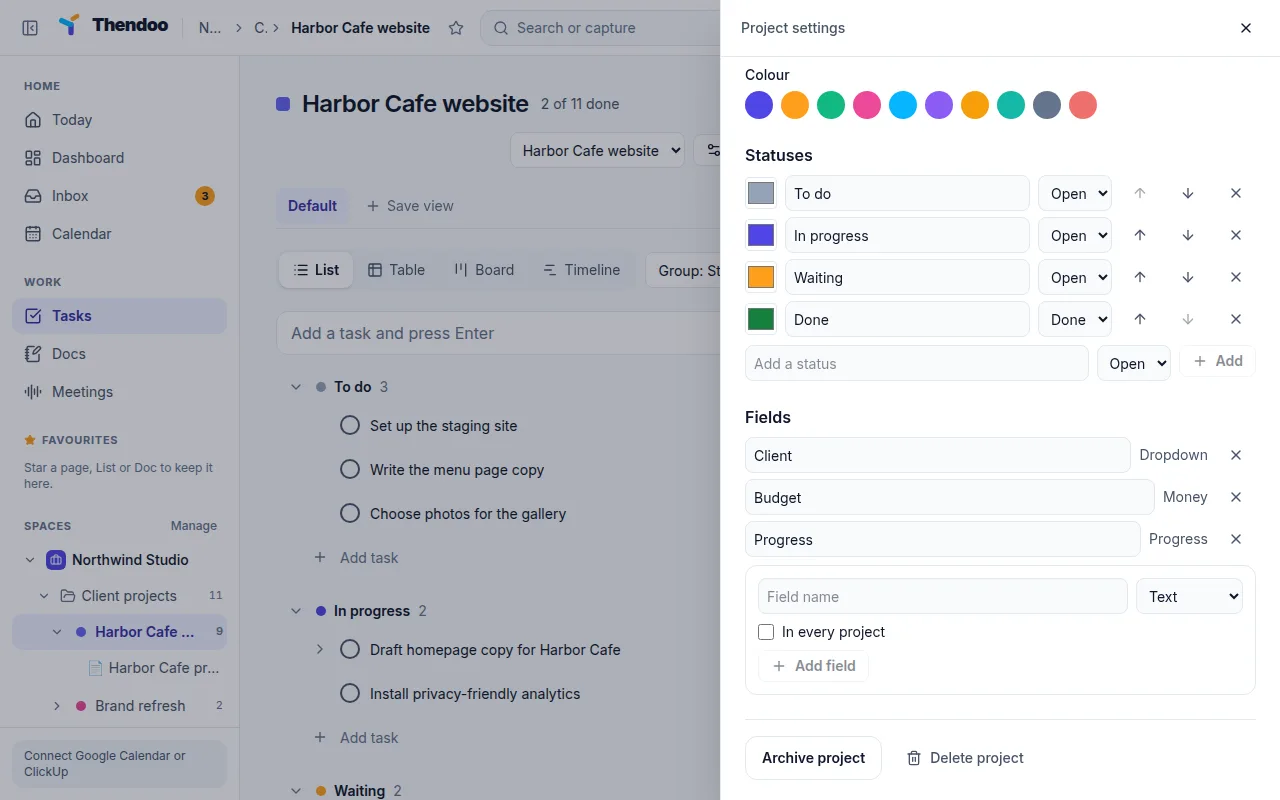
Section titled “Custom fields”Add fields from a List’s settings, under Fields. Choose Add field, give it a Field name, pick a Field type, and decide whether it applies In every project or only this one.
| Field type | Good for |
|---|---|
| Text | A reference or short note |
| Number | Word count, quantity |
| Date | Contract start, ship date |
| Dropdown | One choice, like Client A / Client B |
| Labels | Several choices at once |
| Checkbox | “Invoiced”, “Approved” |
| Link | A Figma file or shared folder |
| Rating | 1 to 5 |
| Progress | 0 to 100% |
| Money | An amount plus a Currency |
| Email, Phone | A contact for this task |
For Dropdown and Labels, type the Choices, separated by commas (up to 100). A task can carry up to 50 fields. Fill them in under Fields on the open task.
In the Table layout, custom fields become columns you can sort and resize. Removing a field removes its values from every task, and Thendoo asks before it does.
Task types
Section titled “Task types”A type says what a task is. Three are built in: Task, Milestone and Meeting note. To add your own, choose Task types on the Tasks page, then Add type with a Type name, an Icon (16 to choose from) and a Colour. You can have up to 100.
Use types to filter (Filter by type) and to group a list by type. Examples: “Bug”, “Invoice”, “Errand”. Removing a type keeps its tasks; they become plain tasks.
Task numbers
Section titled “Task numbers”Every task gets a number, shown as #123. Numbers count up within your own account. Type #123 into the search bar (⌘K or Ctrl+K) to find that task. It’s handy when a note says “see #57” or when you tell yourself “pick up #212 tomorrow”. In the Table layout, add the Number column to see them all.