Import and export browser bookmarks
Years of bookmarks can come across in one go. Your browser’s folders become categories and sub-categories in Links.
Step 1: export from your browser
Section titled “Step 1: export from your browser”Every major browser saves bookmarks in the same HTML format:
| Browser | Where to find it |
|---|---|
| Chrome or Edge | Bookmarks › Bookmark manager › ⋮ › Export bookmarks |
| Firefox | Bookmarks › Manage bookmarks › Import and Backup › Export bookmarks to HTML |
| Safari | File › Export › Bookmarks |
The file can be up to 10 MB and hold up to 20,000 links.
Step 2: import into Thendoo
Section titled “Step 2: import into Thendoo”In Links, choose Import. Pick your file, then decide under Put them in:
- A new group keeps the import apart while you look it over. It’s called Imported unless you rename it. Good for a first, messy import.
- An existing group, if the bookmarks belong next to links you already keep there.
- Inside a category, to drop a whole bookmark folder into one card.
Leave Skip links I already have on. Folders with the same name in the same place are reused, so importing the same file twice adds nothing new.
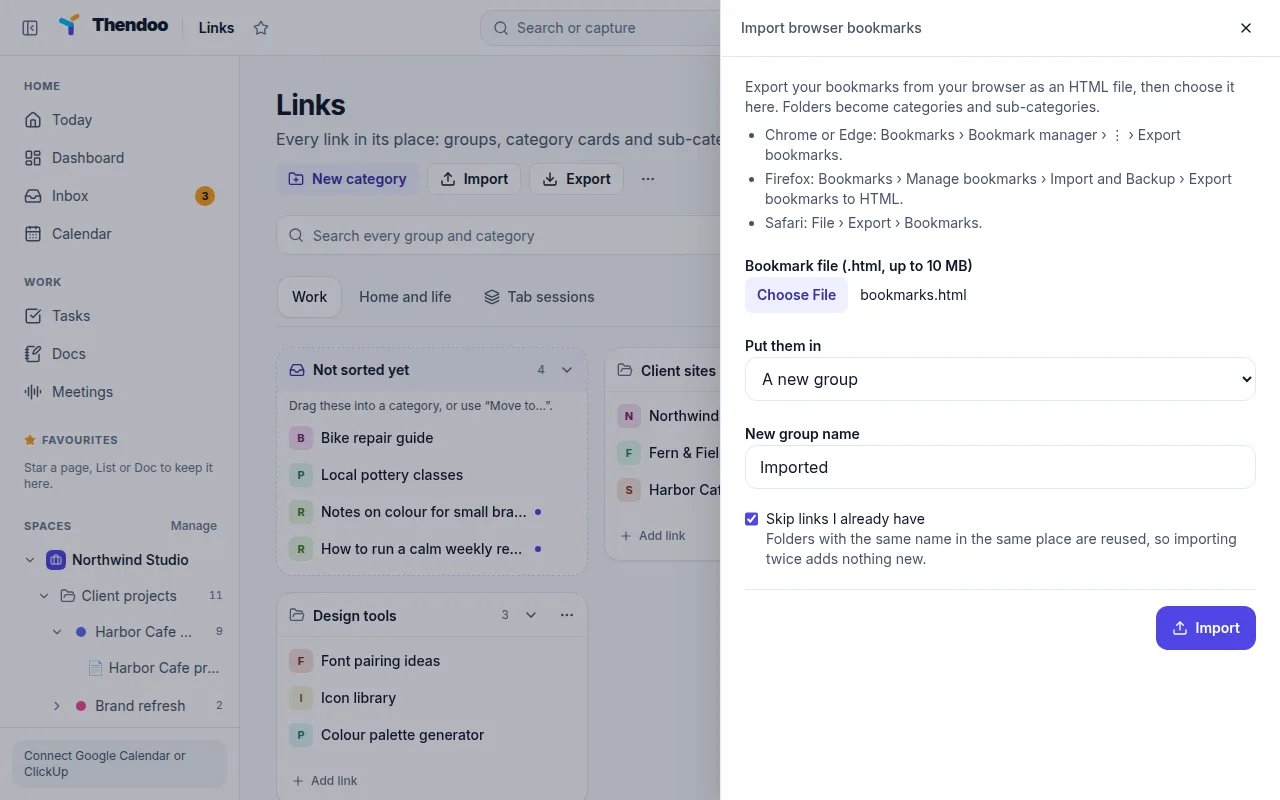
When it finishes you see how many links were added, how many you already had, and how many items were left out.
After the import
Section titled “After the import”Browser bookmark bars are often deep and crowded. Spend five minutes, not an afternoon:
- Open the new group and collapse the cards you don’t need right now.
- Run Find duplicates if you imported from two browsers.
- Delete one category you know is dead weight. That’s enough for today.
Export your links
Section titled “Export your links”Choose Export to download thendoo-links-YYYY-MM-DD.html. Each group becomes a top-level folder, and any browser can import the file. It’s a simple way to keep a copy, or to take your links elsewhere.
For a copy of everything else in your account, use Export my data in Settings.