Set up your first Today
Thendoo works best when everything you need to do today is in one place. This guide gets you there in about five minutes, and you can skip any step and come back to it.
1. Name the parts of your life
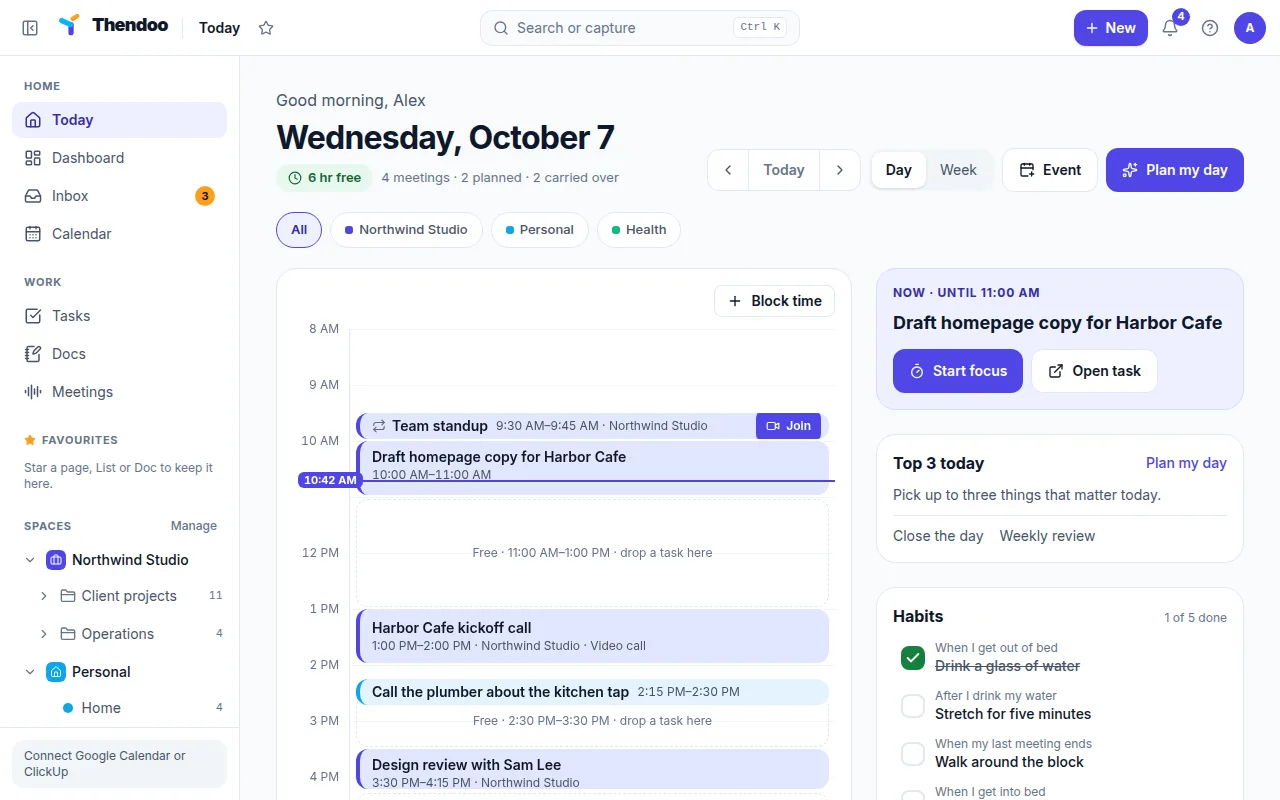
Section titled “1. Name the parts of your life”When you first sign in, Thendoo asks What are the parts of your life? Pick the Spaces that fit, such as Company, Personal, Health, Family, Side project or Money, or type your own under Another Space. A Space is a company or a part of your life, so work for two jobs stays apart without needing two apps. You can rename, add or archive Spaces any time.
2. Bring in your day
Section titled “2. Bring in your day”The next step, Bring in your day, offers Google Calendar and ClickUp. Both are optional. Choose Skip for now if you’d rather look around first; you can connect them later from Settings → Connections. Then choose Go to Today.
Google Calendar only shows up here when the Thendoo server you use has been set up to talk to Google. If you don’t see it, connect ClickUp or skip; your own Thendoo calendar works either way.
3. Capture a few tasks
Section titled “3. Capture a few tasks”Press Ctrl K (⌘ K on a Mac) or click Search or capture in the top bar. Type the task the way you’d say it, for example call Sami tomorrow 10am #Work, and press Enter. To capture now and sort later, press Shift Enter to send it to the Inbox.
4. Plan your day
Section titled “4. Plan your day”Open Plan my day. Look at what’s already on today, pick your top 3, and Thendoo gives each one a time in the next free slot between your meetings. Choose Save my plan. Today now shows a Top 3 today card, and Start focus on any of them opens a full-screen timer.
Anything you don’t finish rolls forward to tomorrow as Carried over. Nothing turns red, and nothing is lost.
What to do next
Section titled “What to do next”- Spend a week with just Today and capture. Add habits or money tracking only when you want them.
- If a busy screen makes it hard to start, try ADHD mode for a shorter list and bigger buttons.