Turn on two-step sign-in
Two-step sign-in means a stolen password isn’t enough to get into your account. After your password, Thendoo asks for a six-digit code from an authenticator app on your phone. The code changes every 30 seconds.
Any standard authenticator app works, such as a password manager with one-time codes or a dedicated authenticator app.
Set it up
Section titled “Set it up”- Go to Settings → Security and sessions.
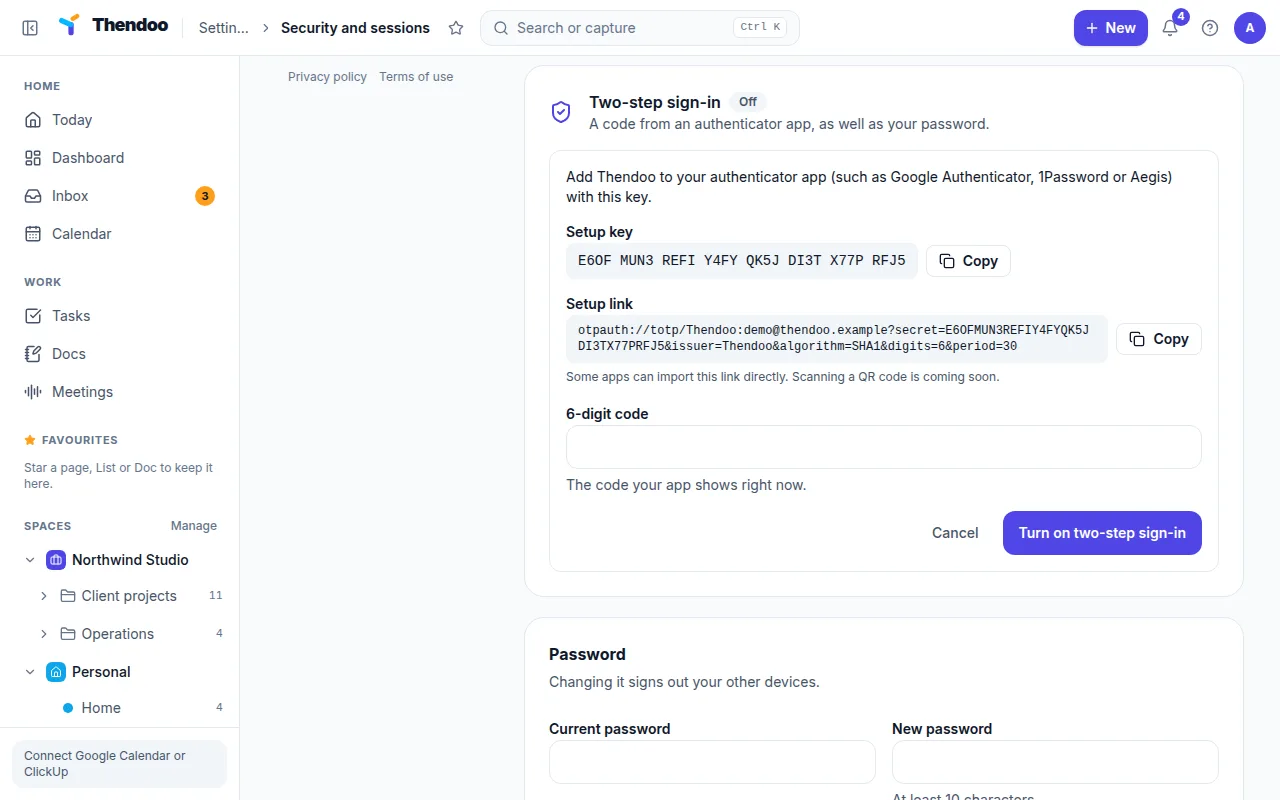
- Add Thendoo to your authenticator app in one of two ways:
- Setup key: copy the key and paste it into the app’s “enter a setup key” option.
- Setup link: open the link on the phone that has your authenticator app, and the app adds the account for you.
- Type the six-digit code the app now shows to confirm it’s working.
- Save your recovery codes (see below).
Recovery codes
Section titled “Recovery codes”You get 10 single-use recovery codes. Each one can stand in for an authenticator code once. Keep them somewhere you can reach without your phone: a password manager on your computer, or a printed copy at home.
Used a few, or worried someone saw them? Replace them with a fresh set from the same settings page.
Signing in
Section titled “Signing in”- Enter your email and password as usual.
- Enter the current code from your authenticator app, or one of your recovery codes.
For safety, Thendoo allows 8 code attempts per 15 minutes. If you hit the limit, wait a little and try again.
If you lose your phone
Section titled “If you lose your phone”Sign in with a recovery code, then set up two-step sign-in again on your new phone and replace your recovery codes. Thendoo can’t send codes by text message or email, so recovery codes are your backup. Check Recent activity afterwards to make sure every sign-in was you.