Plan with time blocks
A to-do list says what. A time block says when. Blocking time is the step that turns “I should do the report” into “the report, 2:00 to 3:30, between my two calls”.
On Today
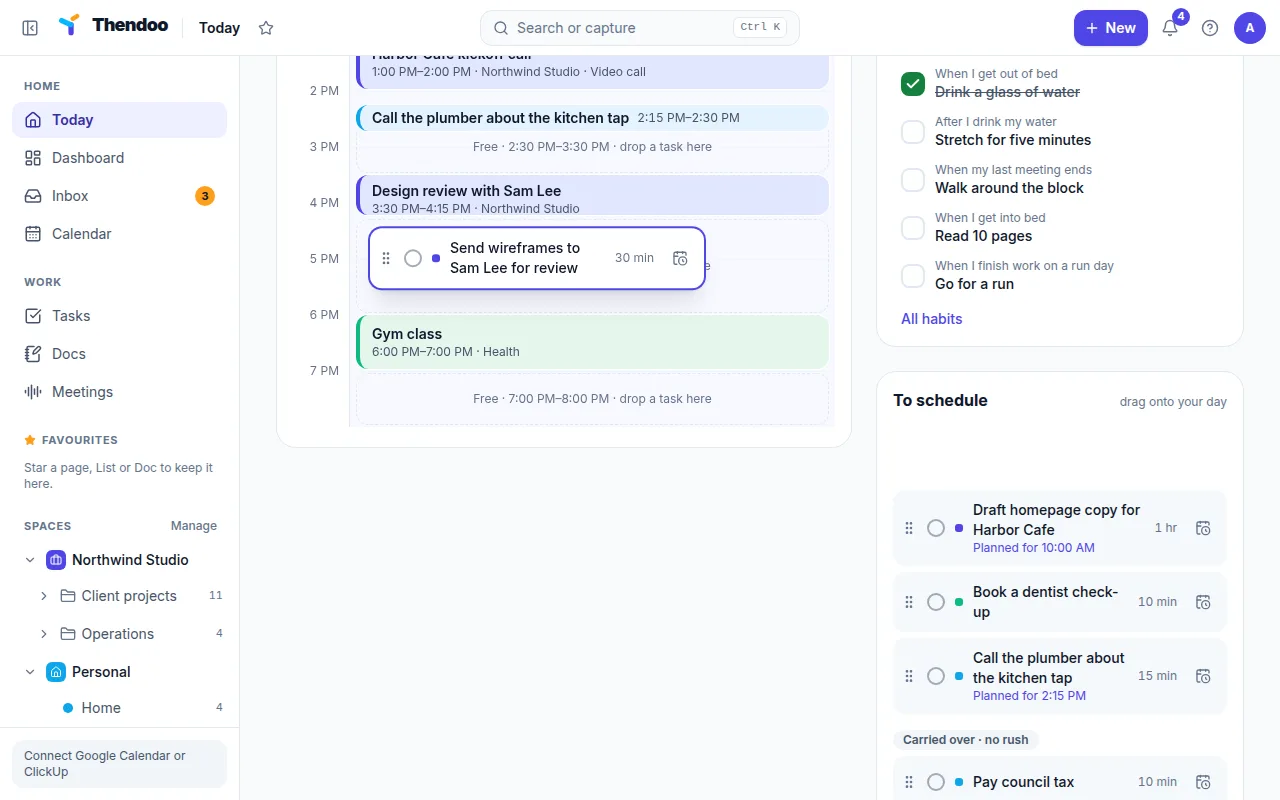
Section titled “On Today”Today shows your day as a timeline, with meetings already in place. Gaps of 30 minutes or more read “Free · 10:00–11:30 · drop a task here”.
- Drag a task from the To schedule tray onto the timeline.
- Or press its schedule button, and Thendoo puts it in the next free slot.
The block is as long as the task’s Estimate, or 30 minutes if there isn’t one. Drag the block to move it and drag its edge to resize it. Choose Block time to reserve time with no task attached, such as “Inbox and admin”.
On the calendar
Section titled “On the calendar”The calendar (/calendar) is better for planning further ahead.
- Open Unscheduled tasks.
- Drag a task onto a time to block time for it, or onto the all-day row to only give it a date.
- Thendoo confirms (“Time blocked for …”) and offers Undo.
You can also click a time and choose Time block under What to add, then type a time like 9-10:30. Everything snaps to 15 minutes. Turn the Time blocks layer off under On the calendar when you only want to see meetings.
Find a time looks for free slots of 30, 60, 90 or 120 minutes within your Planning day hours (08:00–20:00 unless you change them).
Your own calendar
Section titled “Your own calendar”Every account has My calendar, and you can Add a calendar with its own name and color, for example one per company. Events you make here stay in Thendoo. Blocks work with or without Google connected.
Optional: show blocks in Google Calendar
Section titled “Optional: show blocks in Google Calendar”If you live in Google Calendar on your phone, you may want your plan there too. Turn on Show my time blocks in Google Calendar for one Google account under Settings → Connections. Thendoo creates a separate calendar called Thendoo in that account and only writes there.