Organize work with Spaces, folders and Lists
“A Space is a company or a part of your life. Everything you do belongs to one.” Inside a Space you can go as deep as you need, or not at all.
How the levels fit
Section titled “How the levels fit”| Level | What it is for | Example |
|---|---|---|
| Space | A company, role or area of life | Acme, Personal, Health |
| Folder | Groups Lists and Docs; folders can sit inside folders, up to 12 levels | Clients, 2026 |
| List | A project that holds tasks | Website redesign |
| Doc | Notes, at any level | Kickoff notes |
Start flat. One Space with two Lists is plenty on day one; add folders only when a Space feels crowded.
A Space has a name (up to 80 characters), a color and an icon. The calendar can color events by Space, so pick ones you can tell apart at a glance.
The sidebar tree
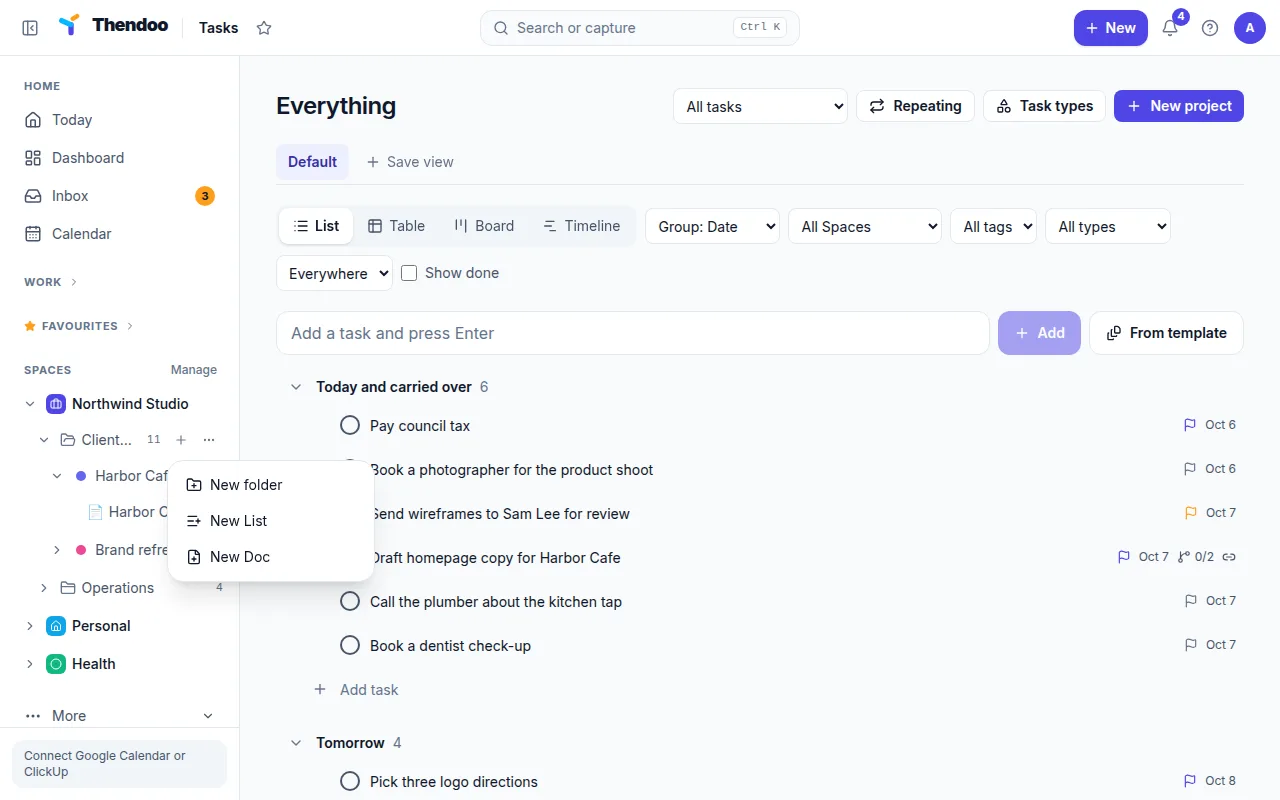
Section titled “The sidebar tree”The sidebar lists Spaces, folders and Lists with open-task counts. Hover over a Space or folder (or move to it with the keyboard) to show its + menu, for New folder, New List or New Doc. Each item’s menu also has Rename and Move to….
The Space overview
Section titled “The Space overview”Select a Space’s name to open its overview. It shows Folders, Lists and Docs in that Space, open and done counts, and Recent activity so you can see what changed lately. Space settings is one click away.
Moving and tidying
Section titled “Moving and tidying”- Drag any item in the tree to reorder it, or drop it on a folder to put it inside.
- Move to… opens a picker: choose a spot, then Move here. This is the easier way on a trackpad.
- Deleting a folder asks what happens to its contents: Move contents up a level, or Archive it all (hidden, nothing deleted).
- Deleting a Space keeps its tasks and other items; they just lose their Space.