Track time on a task
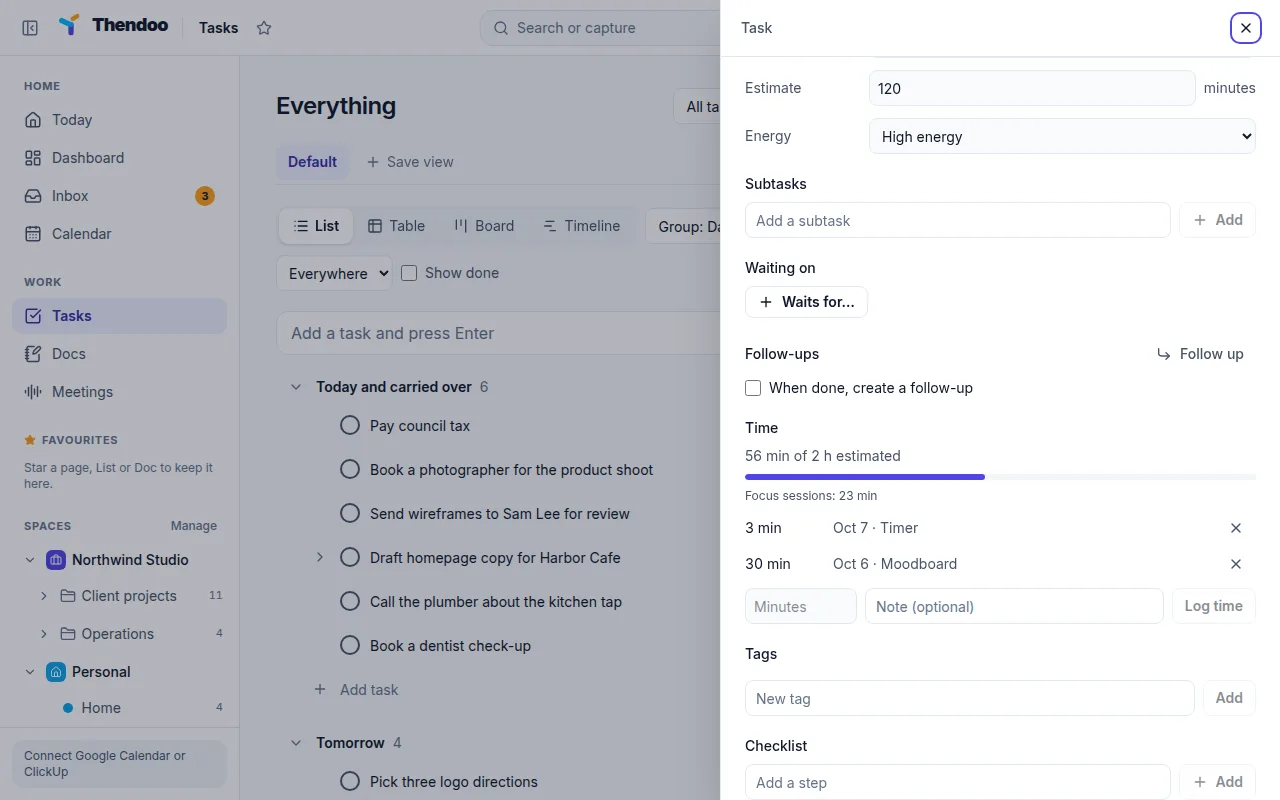
Knowing how long things really take is the fix for plans that never fit. Each task has a Time section that adds up every minute you record on it.
Three ways time gets recorded
Section titled “Three ways time gets recorded”The timer. Choose Start timer when you begin and Stop timer when you stop. Only one timer runs at a time: starting a new one stops the other. While it runs, a pill in the top bar shows the task’s name, the time so far and a stop button, so you can stop it from anywhere. Anything under one minute is discarded, so a mis-click leaves no trace.
By hand. Forgot to start the timer? Choose Log time, enter the Minutes (1 to 1,440), add a Note (optional) such as “call with the printer”, and choose Add. Each entry is listed with its source, Timer or By hand, and Remove this entry takes one back.
Focus sessions. When you start a focus session from a task, the minutes you actually worked (without pauses or breaks) count toward the task. They show as a separate line, Focus sessions:, so you can tell them apart from timer entries.
Estimate and tracked time side by side
Section titled “Estimate and tracked time side by side”Give the task an estimate and the Time section reads, for example, “1 h 10 min of 1 h 30 min estimated”. Going over isn’t marked as a problem. It’s information for next time.
In the Table layout on Tasks, add the Time tracked column to see totals across a project. That’s useful for a client List at the end of the month.
How it feeds the rest of Thendoo
Section titled “How it feeds the rest of Thendoo”When you finish tasks that have both an estimate and recorded time, Insights compares them in Estimated and actual time for that week. If your estimates keep landing at half the real time, try doubling them for a week before you plan.
- Start the timer on the task you’re about to do, not the one you think you should be doing. Honest numbers make better plans.
- For billable work, add a short note to manual entries, like “revisions round 2”. At month end the notes tell you what the hours were for.