Share a booking page
A booking page lets people pick a free time with you, without seeing anything in your calendar. Find it at Settings → Booking (under Workspace).
Create your page
Section titled “Create your page”Choose Set up your booking page and pick a Link name: 3 to 40 lowercase letters, digits and single hyphens. Choose Create my booking page. Thendoo starts you with Monday to Friday, 09:00 to 17:00.
In Profile, set the Name shown to visitors, Your working time zone, a Page colour and a Welcome text. Turn off Page is open to pause bookings; the link then shows a friendly notice.
Meeting types
Section titled “Meeting types”“Each meeting type has its own link, length and rules.” Choose New meeting type, then:
- Basics: Name, Length (15, 30, 45, 60 or Custom), Description and Link ending. Changing the ending breaks links you already shared.
- Where and which calendar: Video call, Phone call, In person or I’ll send details. Visitors see the details only after they book. Add bookings to picks the Thendoo calendar.
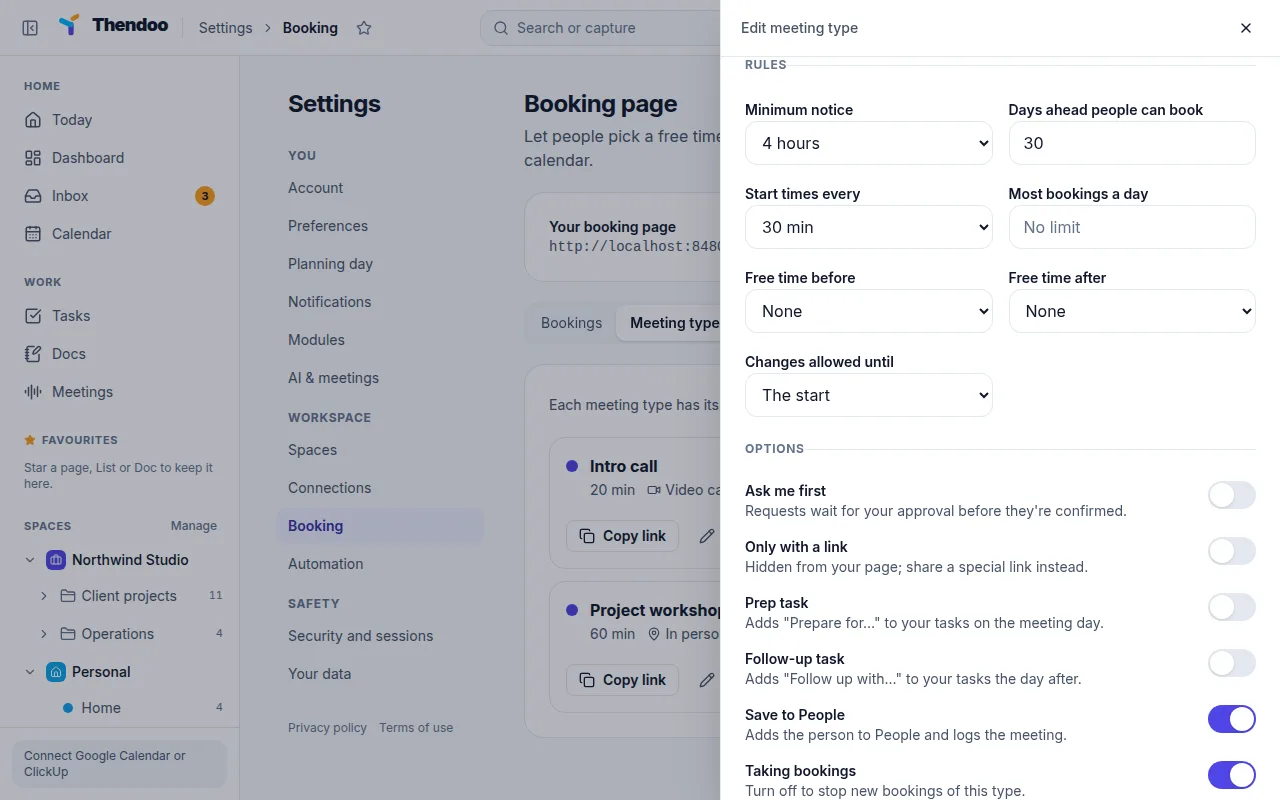
- Rules: Minimum notice (default 4 hours), Days ahead people can book (default 30), Start times every (default 30 minutes), Most bookings a day, Free time before and Free time after, and Changes allowed until.
- Options: Ask me first holds requests for your approval. Prep task and Follow-up task add tasks for you. Save to People (on by default) adds the guest to People.
- Questions: name and email are always asked. Add up to 10 more as Short answer, Long answer, Phone number or Choice.
How free times are worked out
Section titled “How free times are worked out”Thendoo takes your hours, removes busy time, adds your buffers, then applies notice, days ahead and daily limits. Busy time includes events on every visible calendar (including connected Google calendars), your time blocks and other bookings. Events marked free are ignored. Two people can’t grab the same slot.
Under Availability, set Weekly hours (several ranges a day, Copy to open days), give a type Set its own hours, and add Date changes that win over weekly hours.
Share it
Section titled “Share it”In Sharing, choose Copy link. Show it on your website gives embed code for the whole page or one type. Special links can be Single use, open a type hidden with Only with a link, or offer only certain days. Each is shown once, so copy it right away.