Calendar views, layers and Find a time
The calendar at /calendar shows more than meetings. Pick how much of your life it shows and how far ahead you look.
Seven views
Section titled “Seven views”Day, a custom number of days (for example 4 days, set under View options → Days in the custom view), Week (the default), Work week, Month, Year and Schedule, a plain list. Keyboard: D, X, W, M, Y and A. On a phone-sized screen it opens on Day.
Layers: what’s on the calendar
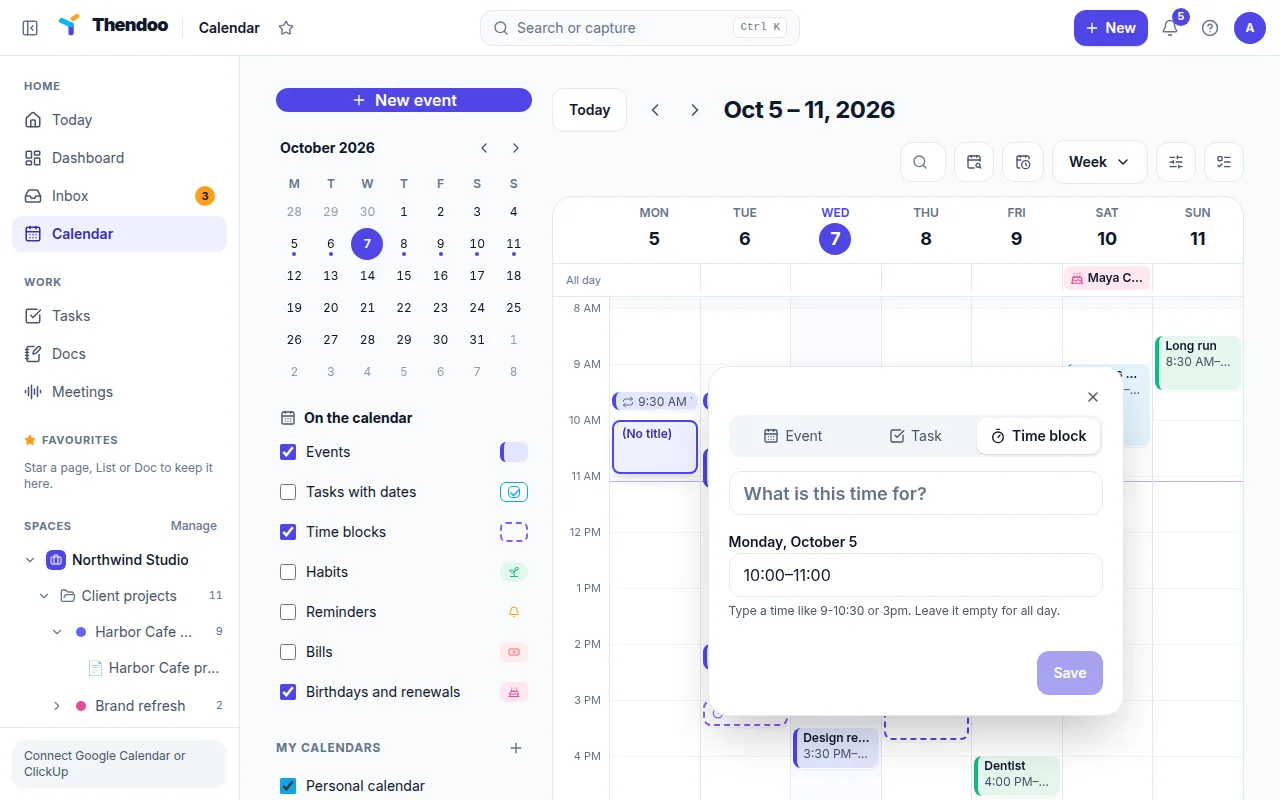
Section titled “Layers: what’s on the calendar”Under On the calendar, tick any of these:
- Events
- Tasks with dates
- Time blocks
- Habits
- Reminders
- Bills
- Birthdays and renewals
On a busy week, try only Events and Time blocks. For a month-ahead money check, switch to Month with Bills and Birthdays and renewals.
View options also hold a Second time zone, Colour events by Space or Calendar, Density (Comfortable or Compact) and Show weekends. They’re saved in this browser only.
Quick add
Section titled “Quick add”Click an empty time, or drag across a range. A small card, Add to the calendar, asks What to add: Event, Task or Time block. Type a title and a time such as 9-10:30 or 3pm. Leave the time empty for an all-day event. A time block always needs a time. More options opens the full form.
Find a time
Section titled “Find a time”Turn on Find a time and pick Free time of 30, 60, 90 or 120 minutes. Green slots show where you’re free inside your working day. Click one to add something there, and choose Done to hide them again.
“Working day” means your Planning day: Settings → You → Planning day, Day starts and Day ends, 08:00 to 20:00 to start with. The calendar shades the hours outside it, and Change working hours in View options takes you there. Setting it to your real hours, say 09:30 to 17:00, keeps Find a time from offering 8 a.m. slots you’d never use.
Events from Google Calendar show up alongside yours but stay read-only: in Thendoo you can only change their Space.