Subtasks and checklists
“Sort out the car” is hard to start. “Find the insurance letter” is not. Thendoo gives you two ways to break a task down, and picking the right one keeps your lists short.
Checklist or subtasks?
Section titled “Checklist or subtasks?”| Checklist | Subtasks | |
|---|---|---|
| What each item is | A line of text you tick | A full task |
| Own date, priority, estimate | No | Yes |
| Shows on Today and in views | No, it stays inside the task | Yes, it can be scheduled on its own |
| Limit | 100 steps per task | No fixed limit |
| Best for | Steps you’ll do in one sitting | Parts you’ll do on different days |
A rule of thumb: if you’d want to put it on a different day than the rest, make it a subtask.
Add a checklist
Section titled “Add a checklist”- Open the task.
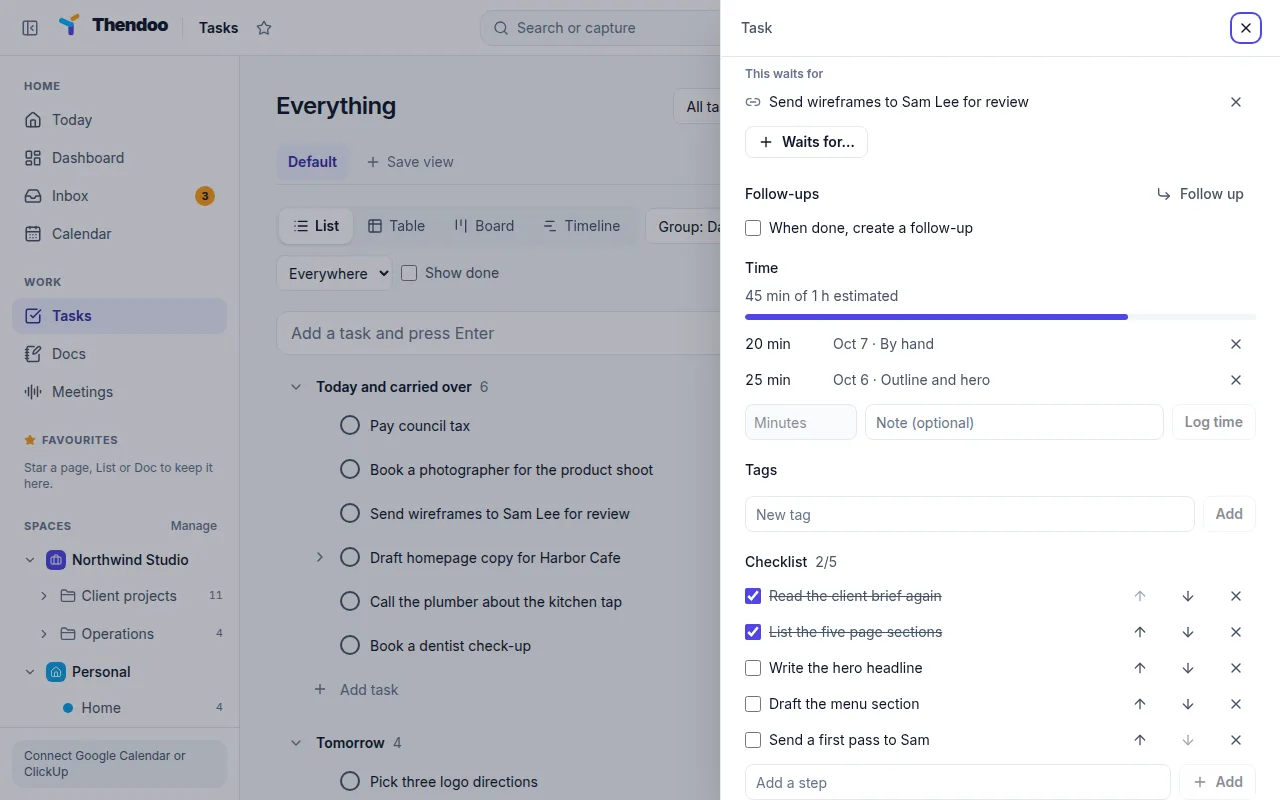
- Under Checklist, choose Add a step and type the first tiny action.
- Keep adding steps. Use the move up and move down controls to reorder them, and remove any you don’t need.
A checklist is a good home for a first step that’s almost too small to count, such as “Open the laptop” or “Put the form on the table”. Starting is often the hardest part.
Add subtasks
Section titled “Add subtasks”- Open the parent task.
- Under Subtasks, choose Add a subtask.
- Give it a title, then open it to set a date, Priority or Estimate as you would any task.
Each subtask shows Part of with its parent. The parent shows progress such as “2 of 5 subtasks done”. In list views you can show or hide a task’s subtasks. A task can’t be placed inside one of its own subtasks.
When one task waits on another
Section titled “When one task waits on another”If a task can’t start until something else is done, that’s a dependency, not a subtask. Use Waits for… in the task panel. The task then lists it under This waits for, and Thendoo refuses loops where two tasks wait on each other.
Repeating tasks and checklists
Section titled “Repeating tasks and checklists”When a repeating task creates its next occurrence, the checklist comes along fresh and unticked. Subtasks don’t copy over, so for a weekly routine of steps, a checklist is usually the better fit.