Set up repeating tasks
Some tasks come back: paying rent, sending an invoice, changing the water filter. A repeating task brings itself back so you don’t have to remember to re-add it.
Make a task repeat
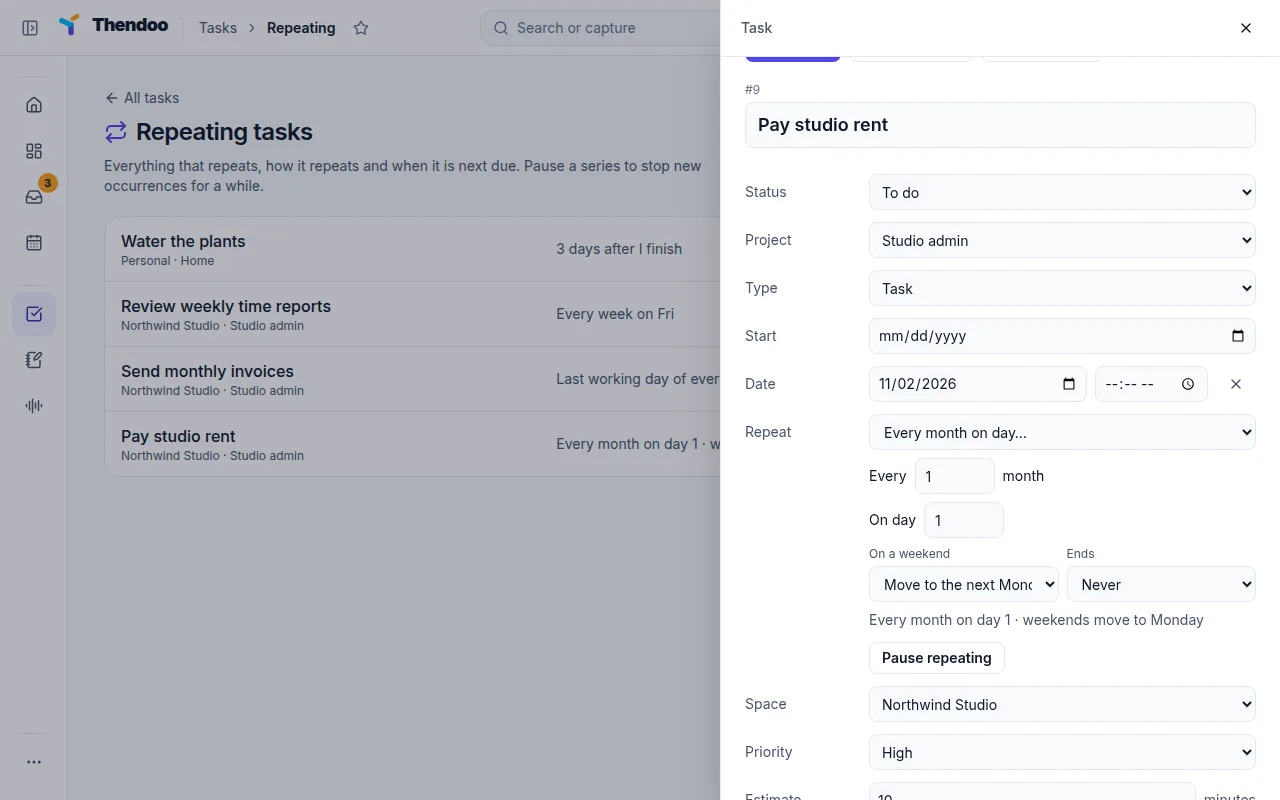
Section titled “Make a task repeat”- Open the task and give it a date. Without one you’ll see “Give the task a date to make it repeat.”
- Under Repeat, pick a pattern.
- Fill in any detail the pattern needs, such as which days or which day of the month.
The patterns
Section titled “The patterns”- Every day and Every weekday
- Every week on… (pick the days, and every one or more weeks)
- Every few days (you choose how many days apart)
- Every month on day… (days 29 to 31 use the last day of shorter months)
- Every month on the first, second… weekday, such as the second Tuesday
- Last day of every month
- Last working day of every month and First working day of every month
- Every quarter (3 months)
- Every year
- Some days after I finish it, for things like “water the plants 4 days after I last did”
Weekends and endings
Section titled “Weekends and endings”On a weekend decides what happens when a date lands on Saturday or Sunday: Keep the weekend day, Move to the next Monday or Move to the Friday before. This is handy for bills and work admin.
Ends can be Never, After a number of times (up to 1,000) or On a date.
How repeats behave
Section titled “How repeats behave”Only one copy of a repeating task is open at a time. When you complete it, Thendoo creates the next one. If you miss a week, you don’t come back to a stack of copies; there’s still just one, marked Carried over.
The next copy brings the title, notes, Space, List, priority, estimate, energy, type, tags, custom fields and a fresh checklist. Subtasks are not copied.
Times stay put across daylight-saving changes: a task at 9:00 stays at 9:00 local time.