Sort transactions with rules and categories
Sorting every coffee by hand is the fastest way to give up on tracking money. Set up categories once, add a rule for each payee you see often, and Thendoo sorts most transactions as they arrive.
Categories: one level deep
Section titled “Categories: one level deep”Open Money → Categories. Thendoo starts you with a short list, such as Food (Groceries, Eating out), Transport (Fuel, Public transport), Home (Rent, Utilities), Health, Subscriptions and Travel, plus Income (Salary, Other income) and Transfers.
Choose New category, give it a Name, a Kind (Spending, Income or Transfer) and where it sits under Inside: Top level or under one parent. Categories go one level deep only, so “Food → Groceries” works but “Food → Groceries → Organic” doesn’t. Budgets add sub-categories into their parent.
If you delete a category, its transactions become Uncategorized and its sub-categories move to the top level. Nothing else is lost.
Rules: when this, file it there
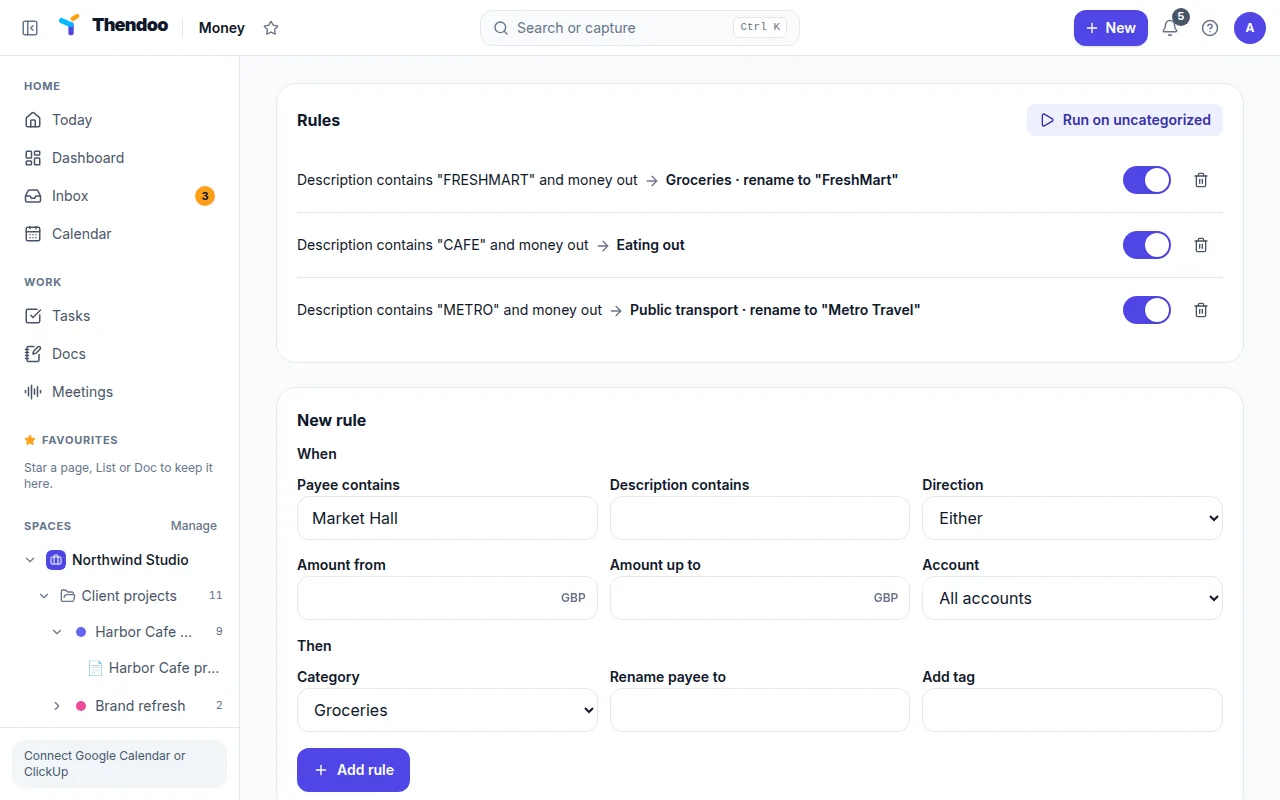
Section titled “Rules: when this, file it there”Open Rules and choose New rule.
When can combine:
- Payee contains or Description contains
- Direction: money out, money in, or Either
- Amount from and Amount up to
- an account
Then sets the Category (or Leave as is, if the rule only tidies names), and can also Rename payee to something readable or Add tag. Then choose Add rule.
Example: payee contains “SHUFERSAL DEAL” → Groceries, rename payee to “Shufersal”. Another: description contains “NETFLIX”, money out → Subscriptions.
How rules run
Section titled “How rules run”- Rules run on quick add (when Category is left at Let rules choose) and on every CSV import, where the preview already shows their categories.
- The first matching rule wins, so put narrow rules before broad ones.
- Rules only fill empty fields. A category you set by hand is never overwritten.
- Run on uncategorized applies your rules to older transactions that still have no category, and tells you how many it sorted.
Read the Overview
Section titled “Read the Overview”Overview shows one month at a time: Money in, Spent, Left over, Where it went (bars per category), Budgets, Coming up (bills in the next two weeks) and Net worth. If some amounts are in a currency without an exchange rate, Overview leaves them out of the totals and says so, with Add a rate.
Categories are for your own picture of the month. For tax categories, talk to your accountant.