Focus timer
One task, one countdown, nothing else on screen
Open the focus timer from a task and the screen clears to a shrinking disc and the one thing you are doing. When you stop, the minutes go back to that task without any typing.
See a day in Thendoo
A short, clickable walk-through with sample data. Nothing here is saved.
- Renew passport next month
- Call the landlord about the boiler
- Draft the quarterly report
- Book the dentist
- After I pour my coffee → Take my vitamins
- When I sit at my desk → Write today’s top 3
- When my last meeting ends → Close the day
- 09:00Focus: quarterly report
- 11:00Team check-in
- 14:00Focus: client proposal
- Electricity · Due Thursday$84.50
- Phone plan · Due Saturday$25.00
Capture a thought in seconds. It lands in your Inbox, ready to sort later.
Step 1 of 4
What you can do
One block or Pomodoro rounds
One block runs for 25 minutes by default, or for what is left of the task's estimate. Pomodoro lets you set work (1–180 minutes), break (1–60 minutes) and 1 to 12 rounds.
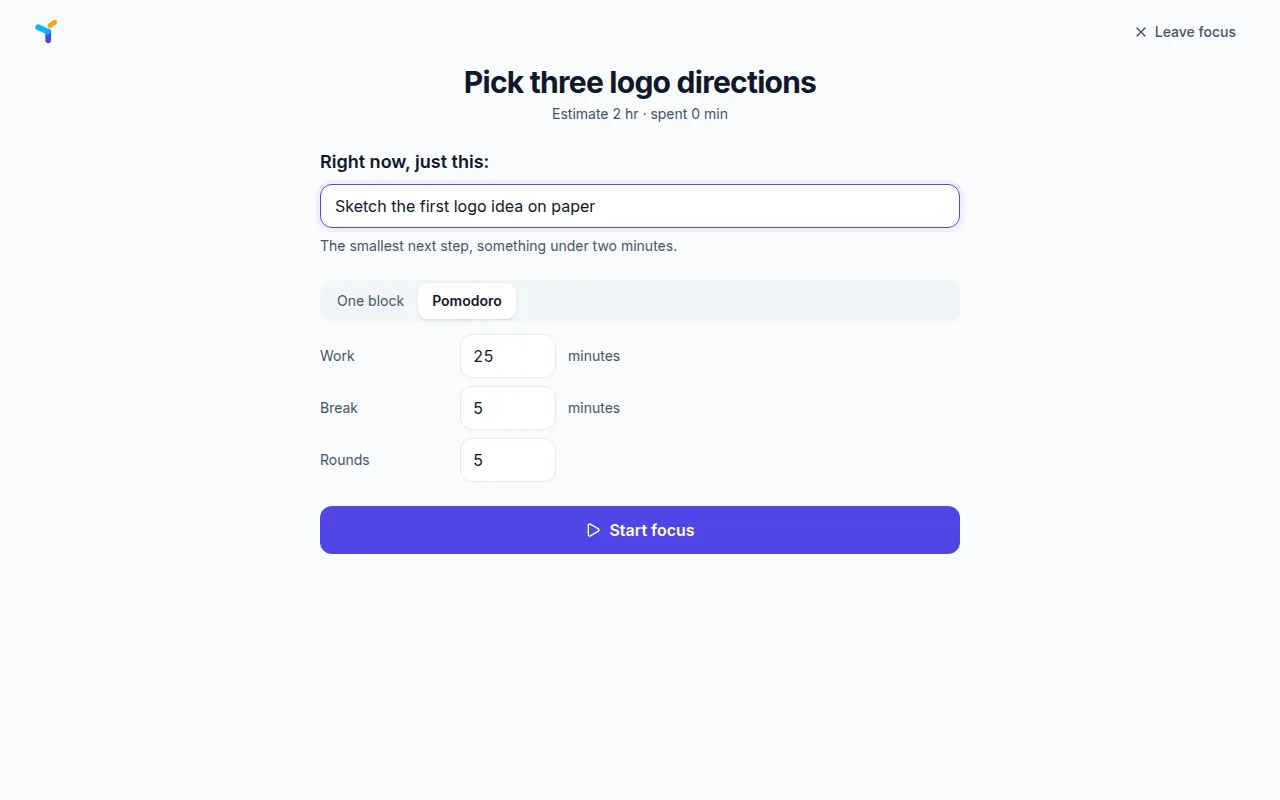
A first step to get you moving
Write the smallest next action under Right now, just this: before you begin, such as "open the draft and fix the first heading". It stays on screen for the whole session.
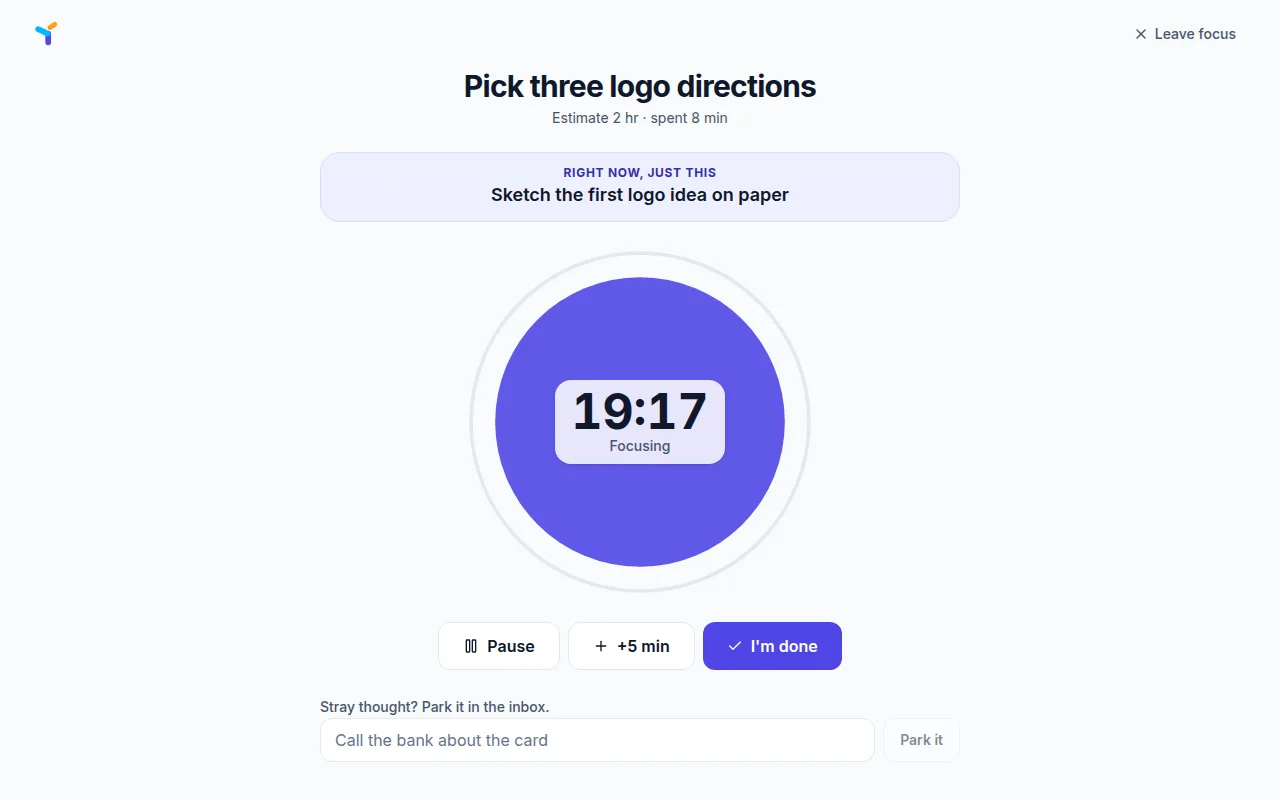
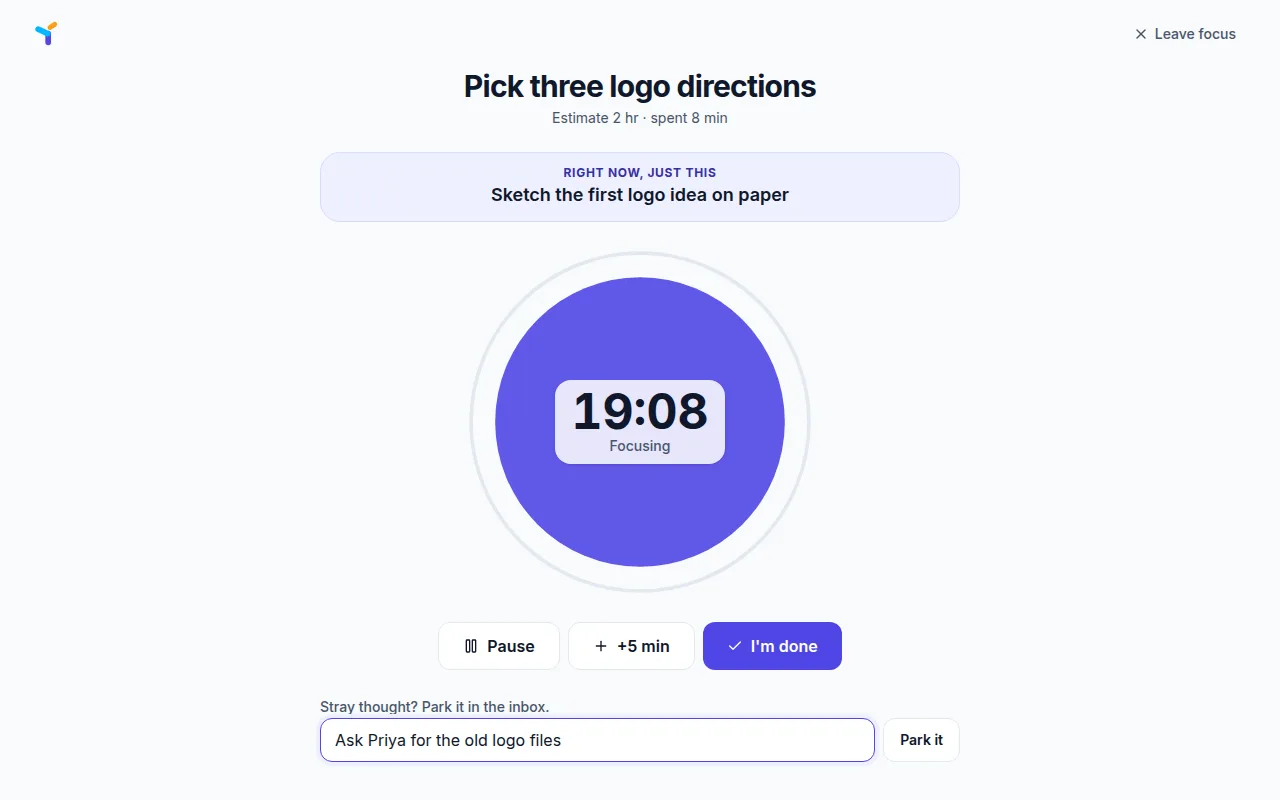
Park stray thoughts without leaving
When something else pops into your head, use Park it to send it to the Inbox and get back to work. Pause, +5 min and I'm done are always one click away.
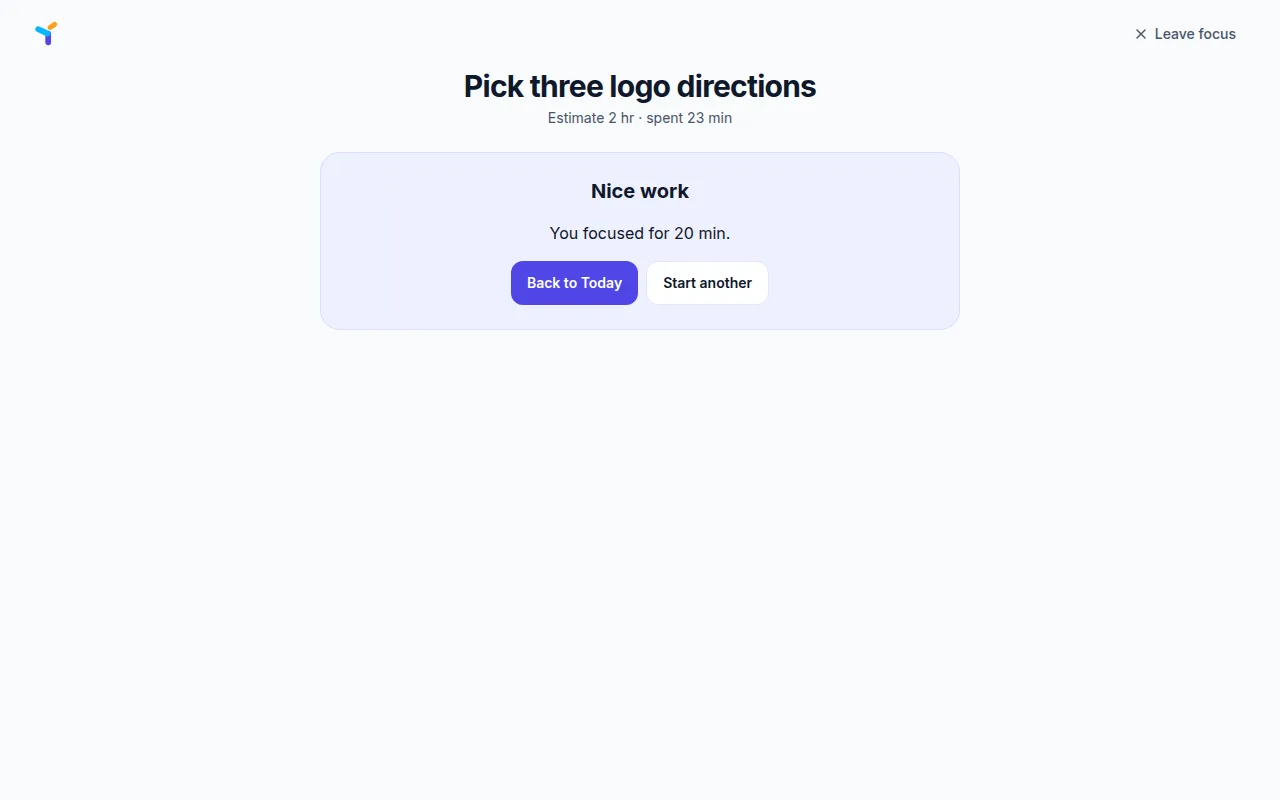
Time that counts toward the task
Thendoo adds the minutes you actually focused, without pauses or breaks, to the task. During the session you see "Estimate · spent", and at the end "You focused for" plus the rounds you finished.
How focus sessions feed your Today view
The focus timer finishes the job Today starts. Today tells you what is next in the Up next card and on the timeline, and the timer is how you actually do it. Because each session is linked to a task, the time you spend shows up on that task’s tracking panel as “tracked of estimate”, and over the week it feeds the Estimated and actual time chart in Insights.
That loop matters when you plan the next morning. If a “30-minute” task took 75 minutes twice in a row, you will see it, and the next time you drag it onto Today you can give it a block that fits.
Who it suits, and what is different
The timer suits people who sit down to work and find twenty minutes gone to other tabs. The full screen hides the sidebar and lists. The first-step line turns “write the report” into something you can start in ten seconds, and parking a thought takes one field instead of a context switch.
Unlike a standalone Pomodoro app, nothing here needs to be logged by hand. You also aren’t locked into 25 minutes: a single block can follow the task’s remaining estimate, up to three hours. The break screen gives one plain suggestion, “Stand up, stretch, drink water”, and nothing counts against you if you stop early.
Questions
Is there a long break after four rounds?
No. Every break is the same length, the one you set. If you want a longer rest, end the session after your last round and start a new one when you are ready.
Can I see my focus history?
There is no separate focus stats page yet. Focused minutes appear on each task, the dashboard has a Focus this week widget, and Insights compares estimated and actual time.
Can I add time when a session runs short?
Yes. Press +5 min as many times as you need. Pausing stops the clock, and paused minutes are not counted toward the task.
Does it play sounds or block websites?
No. There is no ambient sound and no site blocking. The timer keeps the screen simple instead.
Give your brain one place to look.
Set up your first Today in about five minutes. Connect a calendar, add three things, start a focus session.